Effects
SVITRIX can show effects wherever you want
- Notification and CustomApps. This will show the effect as the first layer, so you can still draw text over it.
- Backgroundlayer. This will show the effect behind everything and in each app. You can add it via Hidden features.
Just call the name for your favorite effect. SVITRIX sends all effect names once after start via MQTT to stats/effects. So you can create external selectors. Its also accessible via HTTP /api/effects
| Name | Effect | Name | Effect |
|---|---|---|---|
| BrickBreaker | 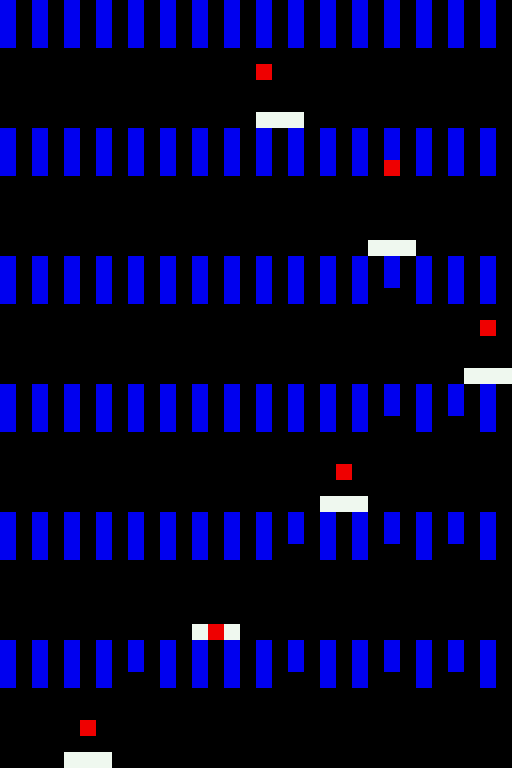 | Checkerboard |  |
| Fireworks |  | PingPong |  |
| Radar |  | Ripple |  |
| Snake |  | TwinklingStars |  |
| TheaterChase | 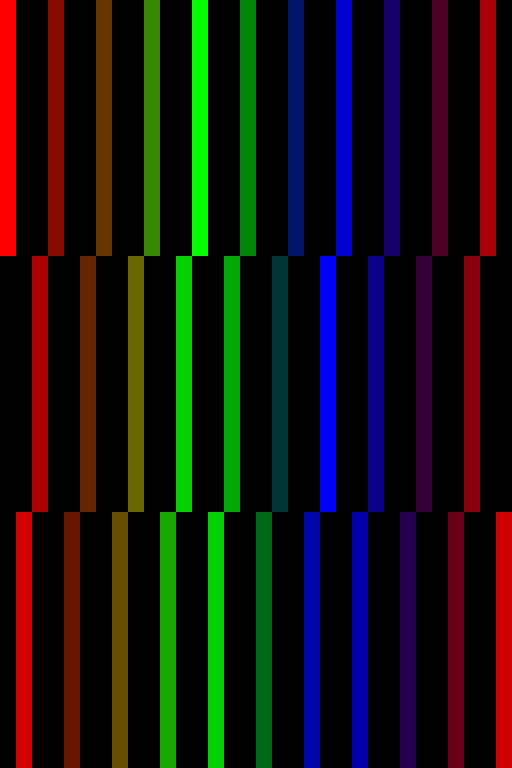 | ColorWaves | 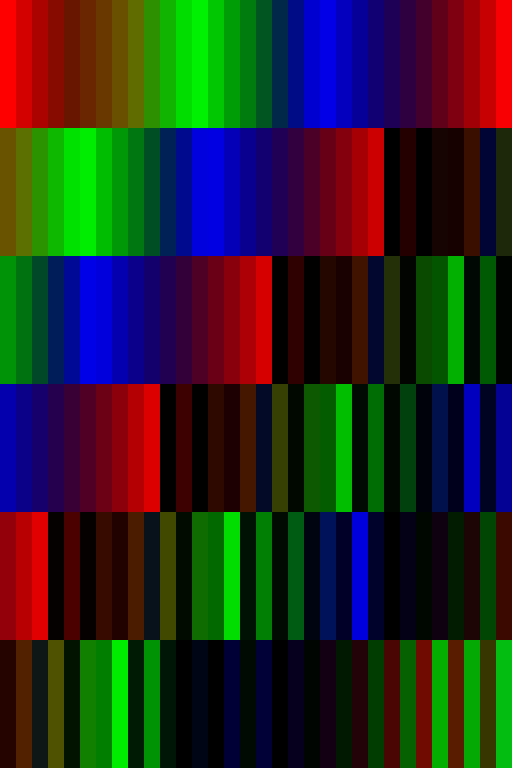 |
| SwirlOut | 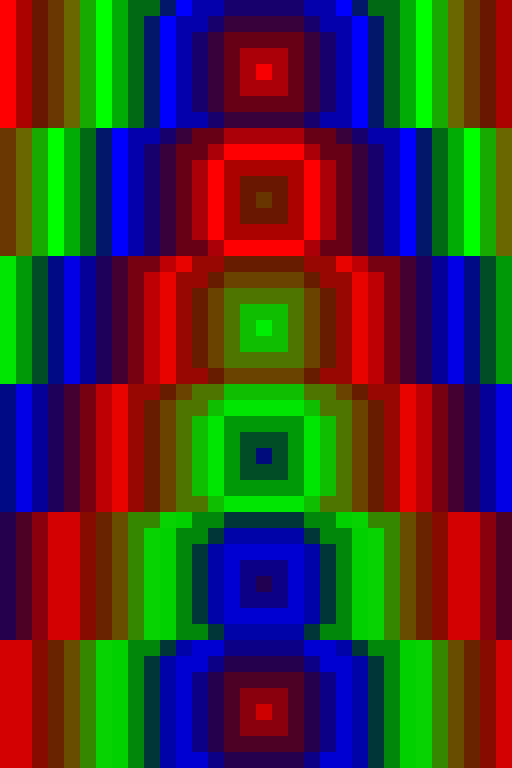 | SwirlIn | 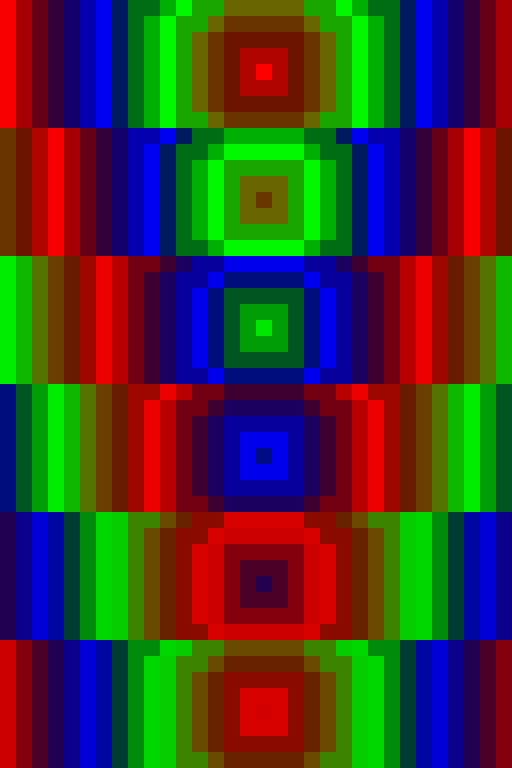 |
| LookingEyes |  | Matrix |  |
| Pacifica | 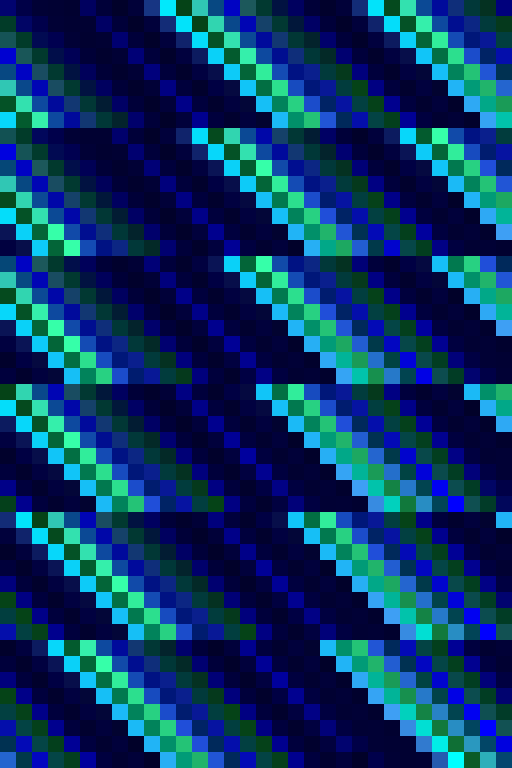 | Plasma | 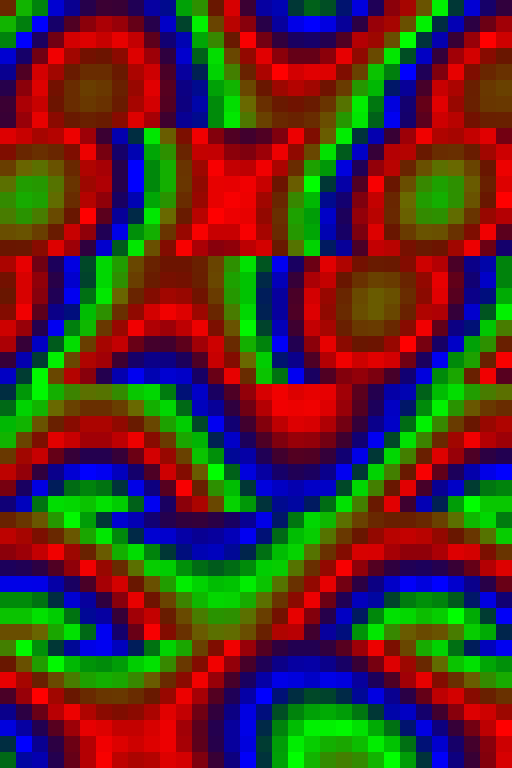 |
| PlasmaCloud |  | MovingLine |  |
| Fade |  | Fire |  |
Effect settings
example:
{
  "effect":"Plasma",
  "effectSettings":{
    "speed":3,
    "palette":"Rainbow",
    "blend":true
  }
}
All settings keys are optional
speed: Mostly 3 as standard. Higher means faster. palette: A color palette is an array of 16 colors to create transitions between colors. Build-in palettes: Cloud, Lava, Ocean, Forest, Stripe, Party, Heat, Rainbowblend: Interpolates between colors, creating a broad array of in-between hues for smooth color transitions.
Standard values:
| Effect Name | Speed | Palette | Blend |
|---|---|---|---|
| Fade | 1 | Rainbow | true |
| MovingLine | 1 | Rainbow | true |
| BrickBreaker | - | - | - |
| PingPong | 8 | Rainbow | - |
| Radar | 1 | Rainbow | true |
| Checkerboard | 1 | Rainbow | true |
| Fireworks | 1 | Rainbow | true |
| PlasmaCloud | 3 | Rainbow | true |
| Ripple | 3 | Rainbow | true |
| Snake | 3 | Rainbow | - |
| Pacifica | 3 | Ocean | true |
| TheaterChase | 3 | Rainbow | true |
| Plasma | 2 | Rainbow | true |
| Matrix | 8 | - | - |
| SwirlIn | 4 | Rainbow | - |
| SwirlOut | 4 | Rainbow | - |
| LookingEyes | - | - | - |
| TwinklingStars | 4 | Ocean | false |
| ColorWaves | 3 | Rainbow | true |
| Fire | 5 | Heat | true |
Custom Color Palette Creation Guide
This guide will show you how to create a custom color palette for use with SVITRIX effects.
A color palette in SVITRIX is an array of 16 colors. Each color is represented as a RGB object, which contains red, green, and blue components.
SVITRIX uses these palettes to create transitions between colors in effects. The 16 colors in the palette are not the only colors that will be displayed. Instead, SVITRIX interpolates between these colors to create a wide spectrum of in-between hues. This creates smooth, visually pleasing color transitions in your effects.
- Create a text file with the
.txtextension (for example,sunny.txt) in the/PALETTES/directory.. - In the text file, define 16 colors in hexadecimal format. Each color should be on a new line. A color is defined in the format
#RRGGBB, whereRRis the red component,GGis the green component, andBBis the blue component. Each component is a two-digit hexadecimal number (00 to FF).
For example, a sunny palette might look like this: Note, dont use comments in your palettes file.
0000FF   // Deep blue sky at the horizon's edge
0047AB   // Lighter sky
0080FF   // Even lighter sky
00BFFF   // Light blue sky
87CEEB   // Slightly cloudy sky
87CEFA   // Light blue sky
F0E68C   // Light clouds
FFD700   // Start of sun colors
FFA500   // Darker sun colors
FF4500   // Even darker sun colors
FF6347   // Red-orange sun colors
FF4500   // Dark sun colors
FFA500   // Bright sun colors
FFD700   // Bright yellow sun colors
FFFFE0   // Very bright sun colors
FFFFFF   // White sun colors, very bright light
Remember, the colors you define in your palette serve as key points in the color transitions. SVITRIX interpolates between these colors, creating a broad array of in-between hues for smooth color transitions in your animations. Experiment with different color placements in your palette to achieve different visual effects. You can use blend=false to not use interpolate colors.
Artnet (DMX)
SVITRIX supports Artnet out of the box. For Jinx! you can download this template. Just change the IP of both universes to your svitrix IP and you're ready to go.
For any Other Artnet controller: Create 2 universes with 384 channels each. Also add a new matrix layout with 8 strings á 32 Strands and top left starting position. When you start to send data, SVITRIX will stop its normal operation and shows your data. 1s after you stop sending data, SVITRIX will return to normal operation.